



Basic Usage
When this website is opened, a sample data table is displayed.
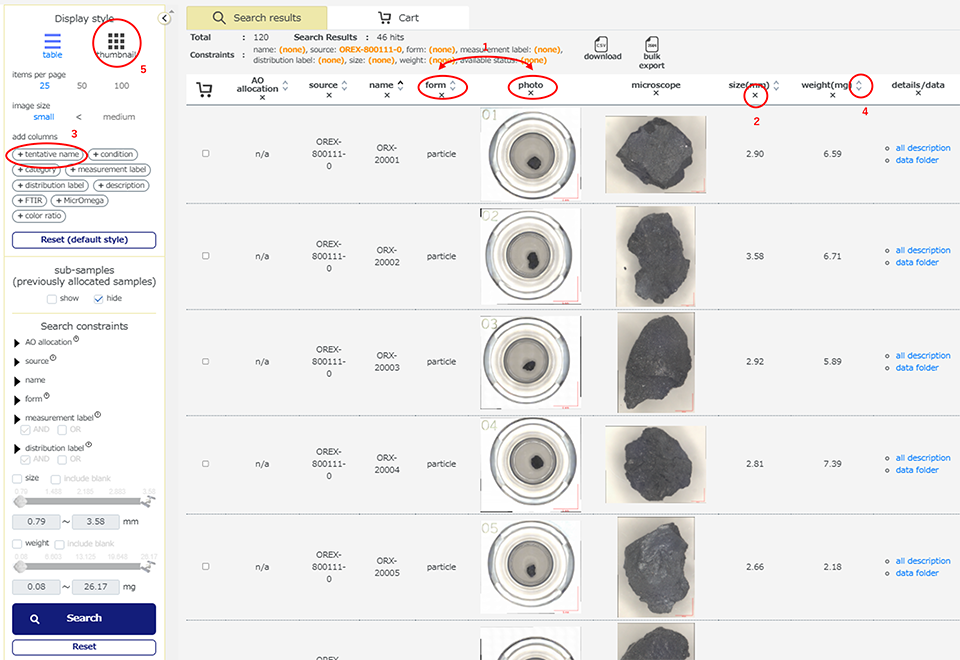
The user can sort/arrange columns of the data table:
- Click and drag a column title to change the column's order.
- Click “x” mark in a column title to hide a column from the table.
- Click icon such as (+condition) in “add columns” field to display a column on the table.
- Click up/down arrow mark in a column title to resort information to alphabetical or numerical order.
- The user can switch the table view to image thumbnails by clicking “thumbnail” in the "Display style" field. "Search constraints" field can be used to extract the sample of interest.
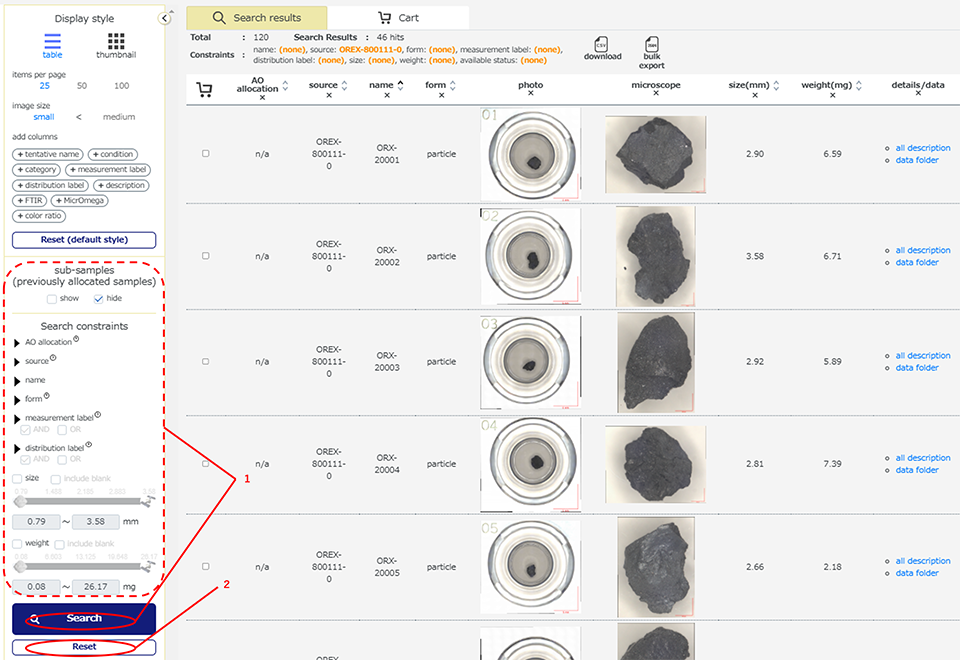
The user can search samples of interest using keywords:
- The user can enter information in a field or check some checkboxes, then click the [Search] button in the “Search constraints” field to search for samples.
- The [Reset] button can be used to clear the search constraints.
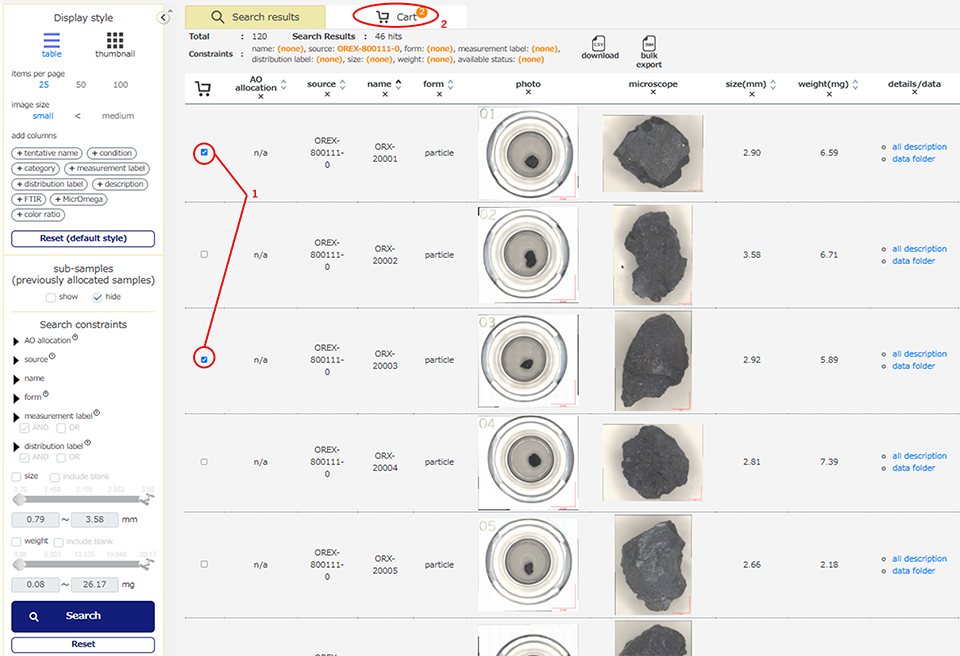
The user can add samples of interest into the Cart:
- Check “Add to cart” checkbox in the table.
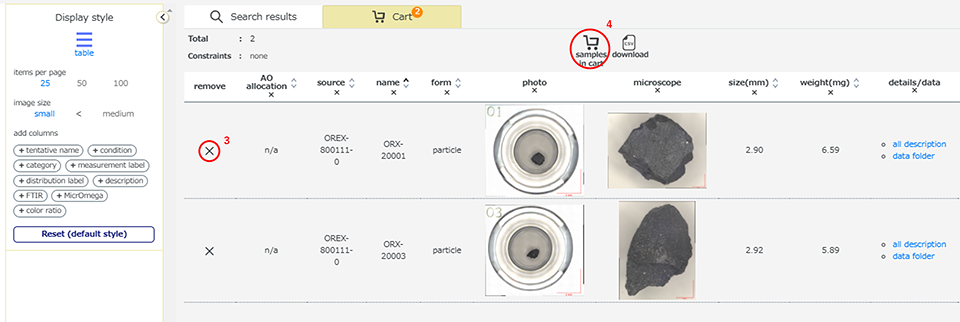
- Click the [Cart] tab. Only the checked samples will be displayed in the data table within the cart.
- Click the “x” mark in the “remove” column to remove a sample from the Cart.
- Click the “Samples in cart” icon to view the sample names in your cart.
Features
Interface
The basic interface consists of two main tabs. The first tab is the “Search results” tab, which shows the search results. If no search constraints are entered, all samples are displayed as the search results. The other tab is the “Cart” tab, which displays only samples with the "Add to cart" checkbox selected.

Display Style
The user can choose data display styles by clicking the "table" or "thumbnail" icons.The items displayed on a page and the image size can also be adjusted. The columns for numbers or kinds can be modified using the "Add Columns" function. The [Reset (Default Style)] button resets the display style and search constraints to their default settings.
Search Constraints
User can search samples of interest by some keywords from the database. Kinds of constraints are listed below.
- AO Allocation: Available or not available (n/a). The user can request available samples for loan through the AO system.
- Source: The source consists of five bulk samples and one contact pad distributed by JSC/NASA. It indicates the parent (master) sample where the sample retrieved.
- Name: The user can input sample names in a text box to search. Tentative names or partial letters of the name are also acceptable. Multiple names can be entered by separating them with commas and spaces (e.g., ORX-10001, ORX-20001, ORX-19000).
- Form: Aggregate, particle, others. Aggregate refers to samples containing multiple particles, while Particle refers to samples with one or a few grains in a single dish. "Others" refers to samples or materials that are difficult to categorize.
- Category: 1 or 2. Category 1 samples are believed to originate from Bennu, while Category 2 samples are artificial materials.
- Measurement Label: Measurement labels show measurement histories through the initial description (e.g., FTIR, MicrOmega, Multiband spectroscopy). Optical microscope observations and weighing are not included, as these two measurements are typically performed on all samples.
- Distribution Label: Distribution labels show distribution histories, including AOs, outreach purposes, the Ryugu Sample Comparative Study (RCS) sub-teams, and detailed descriptions by JAXA (JAXA-DD), among others.
- Size and Weight: The user can set the range for the size and/or weight of the samples to search.
CSV Download and JSON Bulk Export
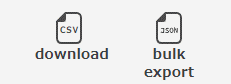
The user can obtain the dataset as a text file through the icons above the data table.
- CSV Download: The data currently displayed on the table is downloaded as a CSV-formatted text file by clicking this icon.
- JSON Bulk Export: All displayed information in the database system is exported as a JSON-formatted text file by clicking this icon.
All Sample List, All Sample List (Lineage), On-Loan Samples, and Loan History
This menu link is located at the bottom of the website. Users can use it to obtain a simple static list.
- All Sample List: Names and basic information of all samples registered in the database are listed.
- All Sample List (Lineage): A list of each sample’s parent and child samples is provided.
- On-Loan Samples: Samples that are currently on loan are listed.
- Loan History: A list of all samples with a loan history is provided.
