



Basic Usage
When this website is opened, a sample data table is displayed.
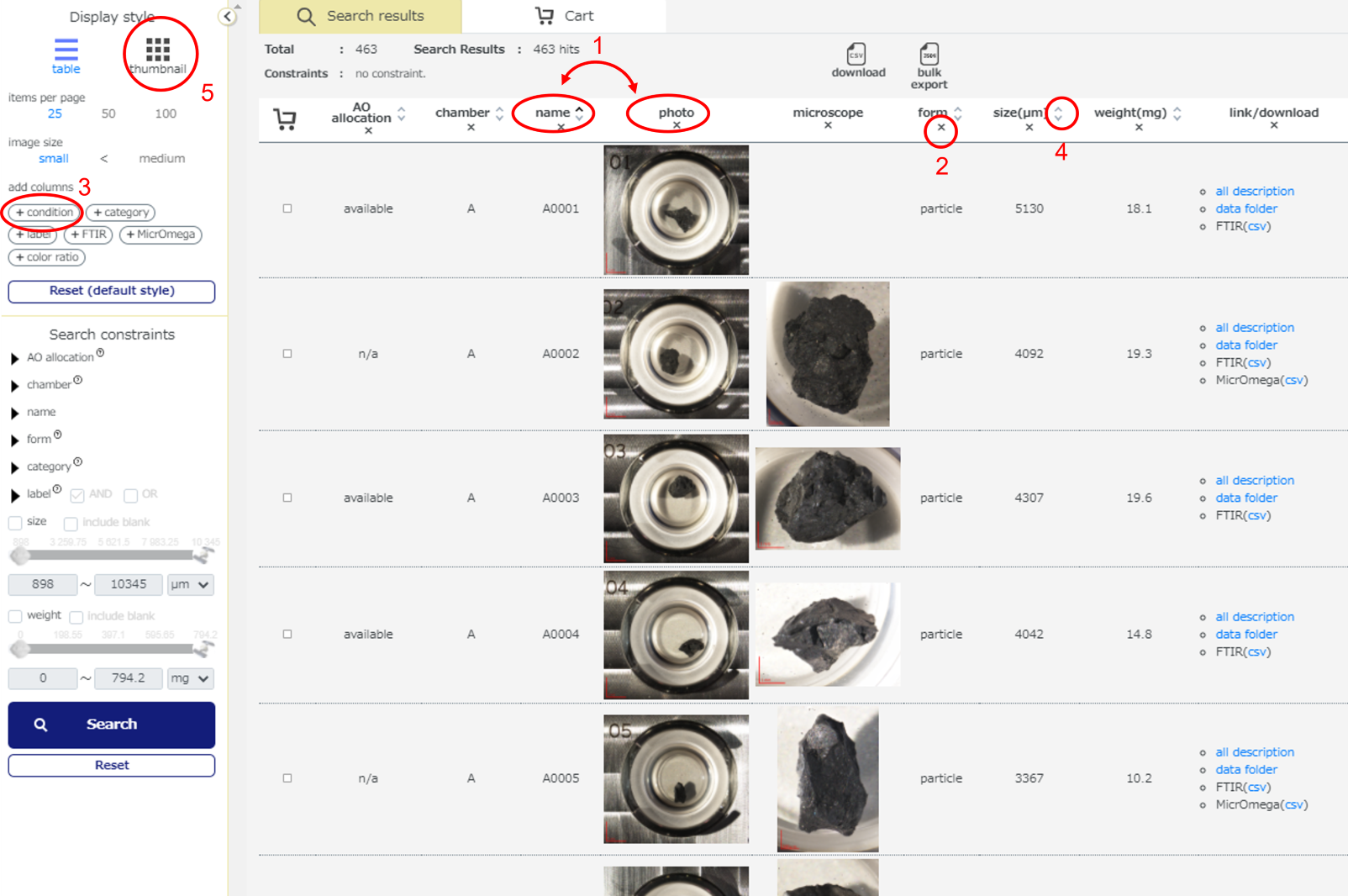
User can sort/arrange columns of the data table:
- Click-drag a column title to change column’s order.
- Click “x” mark in a column title to hide a column from the table.
- Click icon such as (+condition) in “add columns” field to display a column on the table.
- Click up/down arrow mark in a column title to resort information to alphabetical or numerical order.
- User can switch the table view to image thumbnails by clicking “thumbnail” in the "Display style" field. "Search constraints" field can be used to extract the sample of interest.
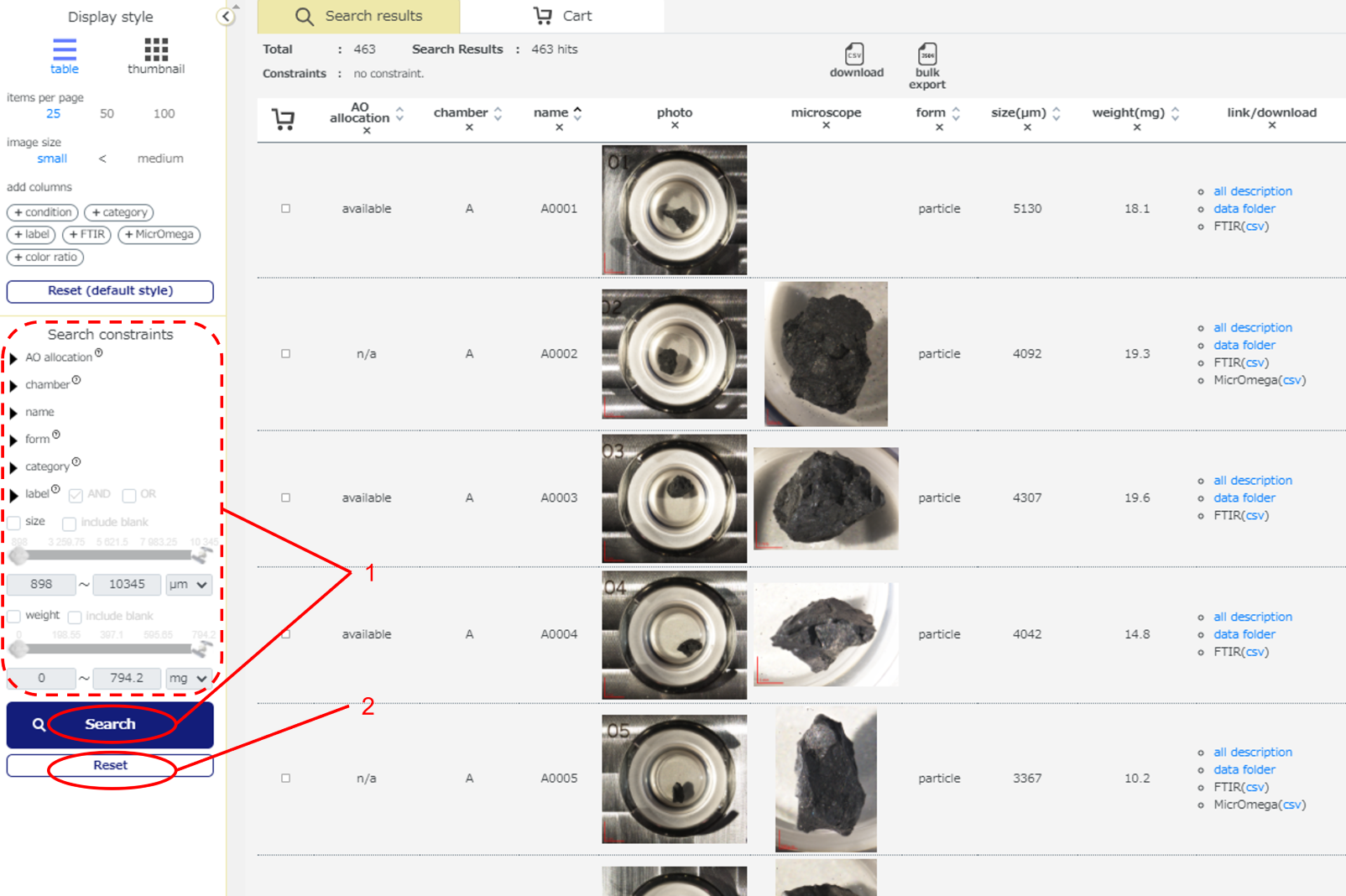
User can search samples of interest by some keywords:
- User could input information in a field or check some checkboxes then click [Search] button in “Search constraints” field to search samples.
- [Reset] button can be used to clear the search constraints.
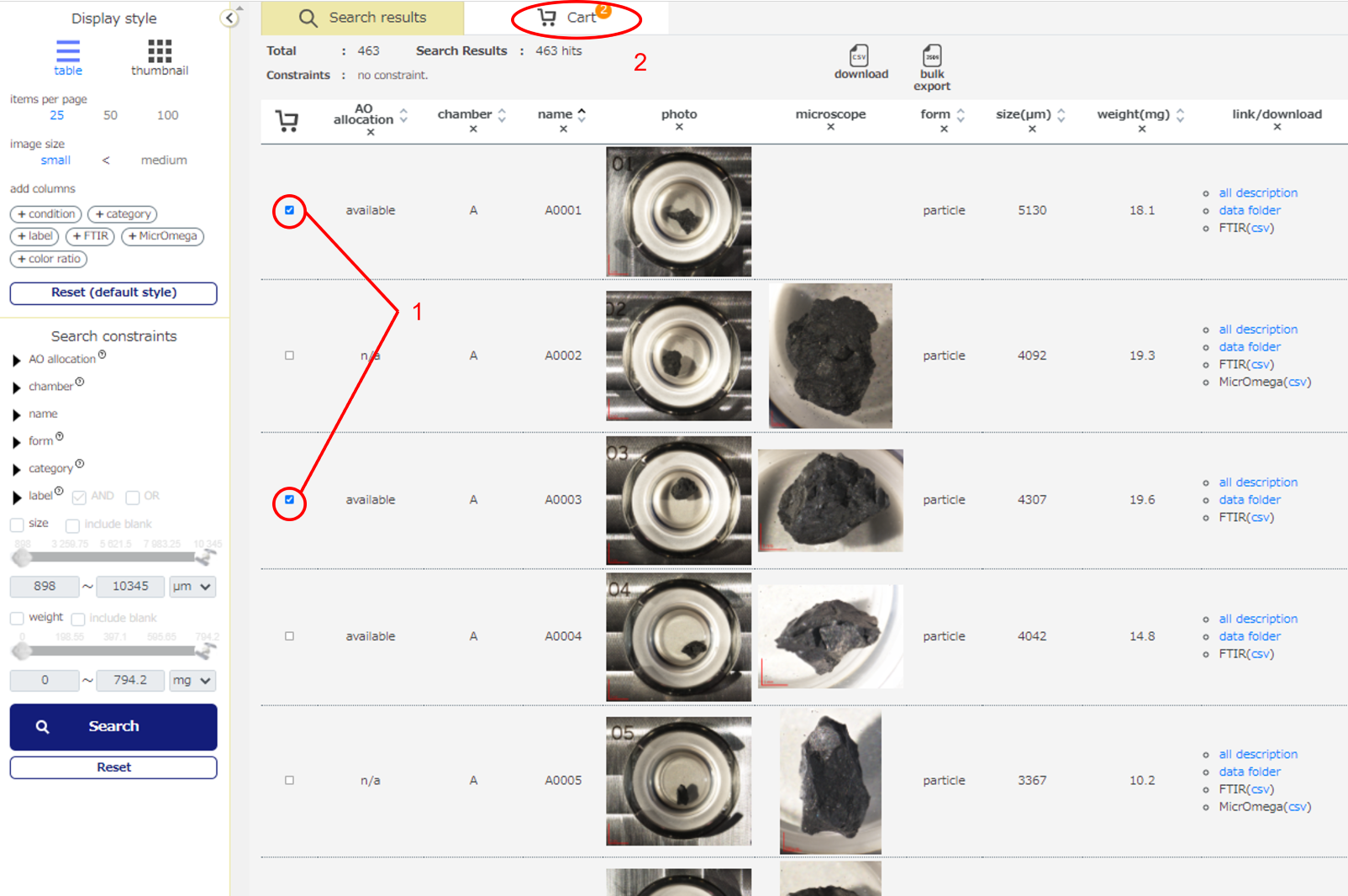
User can pick samples of interest into the Cart:
- Check “add to cart” checkbox on the table.
- Click [Cart] tab. Only checked samples are displayed in the data table in the cart.
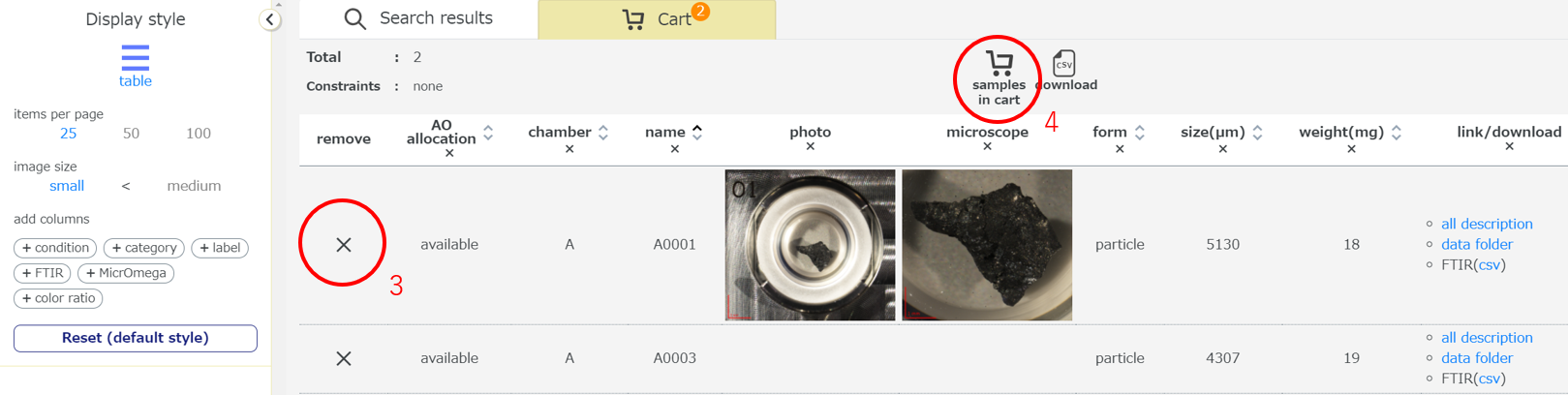
- Click “x” mark in “remove” column to remove sample from the Cart table.
- Click “Samples in cart” icon to list sample names in your cart.
Features
Interface
Basic interface consists of two main tabs. The first tab is the “Search results” tab which shows search results. If no search constraints are entered, all samples are displayed as the search results. The other tab is “Cart” tab which displays only samples with "add to cart" checked. “Cart” tab is for selecting candidate samples to loan so that samples whose "AO allocation" is "available" can be added to the cart.

Display style
User can choose data display styles by clicking "table" or "thumbnail" icons. Items displayed on a page and image size also can be changed. Numbers or kinds columns can be changed by add columns function. [Reset (default style)] button resets display style and search constraints to default setting.
Search constraints
User can search samples of interest by some keywords from the database. Kinds of constraints are listed below.
- AO allocation - available or not available (n/a). User can request available samples to loan through the Ryugu sample AO system.
- chamber - A, B, and C are name of the chamber of the sample catcher. "A" indicate the chamber A of the sample catcher for example. It indicates the place where the sample retrieved.
- name - User can input sample name in a square box to search. Several names can be input by comma and space separator (e.g., A0001, C0001, C0002).
- form - aggregate, particle, gas, others. Aggregate and particle are solid materials. Aggregate is sample which have some particles and Particle is sample which is single or some grains in one sample dish. Gas is gas sample from the sample container. Others is sample or materials whish is difficult to be categorized.
- category - 1 or 2. Category 1 samples are seemed to be Ryugu origin. Category 2 samples are artificial materials.
- label - Label shows distribution or measurement histories. There are Initial Analysis, Phase2 Kochi, Phase2 Misasa, FTIR, MicrOmega, and etc.
- Size and weight - User can set range of size and/or weight of sample to search.
CSV download and JSON bulk export
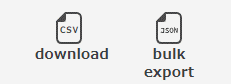
User can obtain dataset as a text file through icons above the data table.
- CSV download - Data currently displayed on the table data is downloaded as a CSV formatted text file file by click this icon.
- JSON bulk export - All displayed information on the database system is exported as a JSON formatted text file by click this icon.
all sample list, all sample list (lineage), on-loan samples, and loan history
This menu link is located the bottom of the website. User can use to obtain simple static list.
- all sample list - Names and basic information of all samples registered in the database are listed.
- all sample list (lineage) - All of each sample’s parent and children are listed.
- on-loan samples - Samples which is currently under loaned are listed.
- loan history - All samples which have loan history are listed.
